
Build and Reuse a Custom Gaming Clip Layout
A good gaming moment is not automatically a good vertical clip. Once you find the kill, reaction or clutch worth publishing, you still have to decide what survives the move from a 16:9 recording to a 9:16 phone screen.
Gameplay needs enough room to remain readable. The webcam should be visible without hiding the action. A minimap may be essential to understanding the play. Hook text, channel branding and subtitles all compete for the space that remains.
The ClickClips Custom Layout Editor is built for that second half of the clipping workflow. You build a custom gaming clip layout from the important regions, save the composition as a named template and apply it to future recordings instead of rebuilding the same layout for every clip.
Why a Center Crop Is Not Enough for Gaming Clips
A basic vertical conversion takes the middle of a horizontal frame and cuts away both sides. That can work for a talking head, but a gaming stream is rarely one simple subject in the center.
The source may contain gameplay, a webcam, a minimap, a scoreboard, a kill feed and chat. A center crop can keep the crosshair while removing the webcam and minimap. Shrinking the entire 16:9 frame keeps every element, but often makes the game too small to follow on a phone.
A useful vertical gaming video layout treats those parts as separate regions. Gameplay can own most of the canvas, the webcam can move above it, and the minimap can be enlarged enough to remain legible. The final clip preserves the information that made the moment interesting.
This matters in games where the HUD explains the decision. A sudden turn in a shooter may look random without the minimap. A clutch may lose its emotional payoff if the streamer's reaction disappears. The best layout depends on what the viewer needs to understand.
Build a Custom Gaming Clip Layout From Your Recording
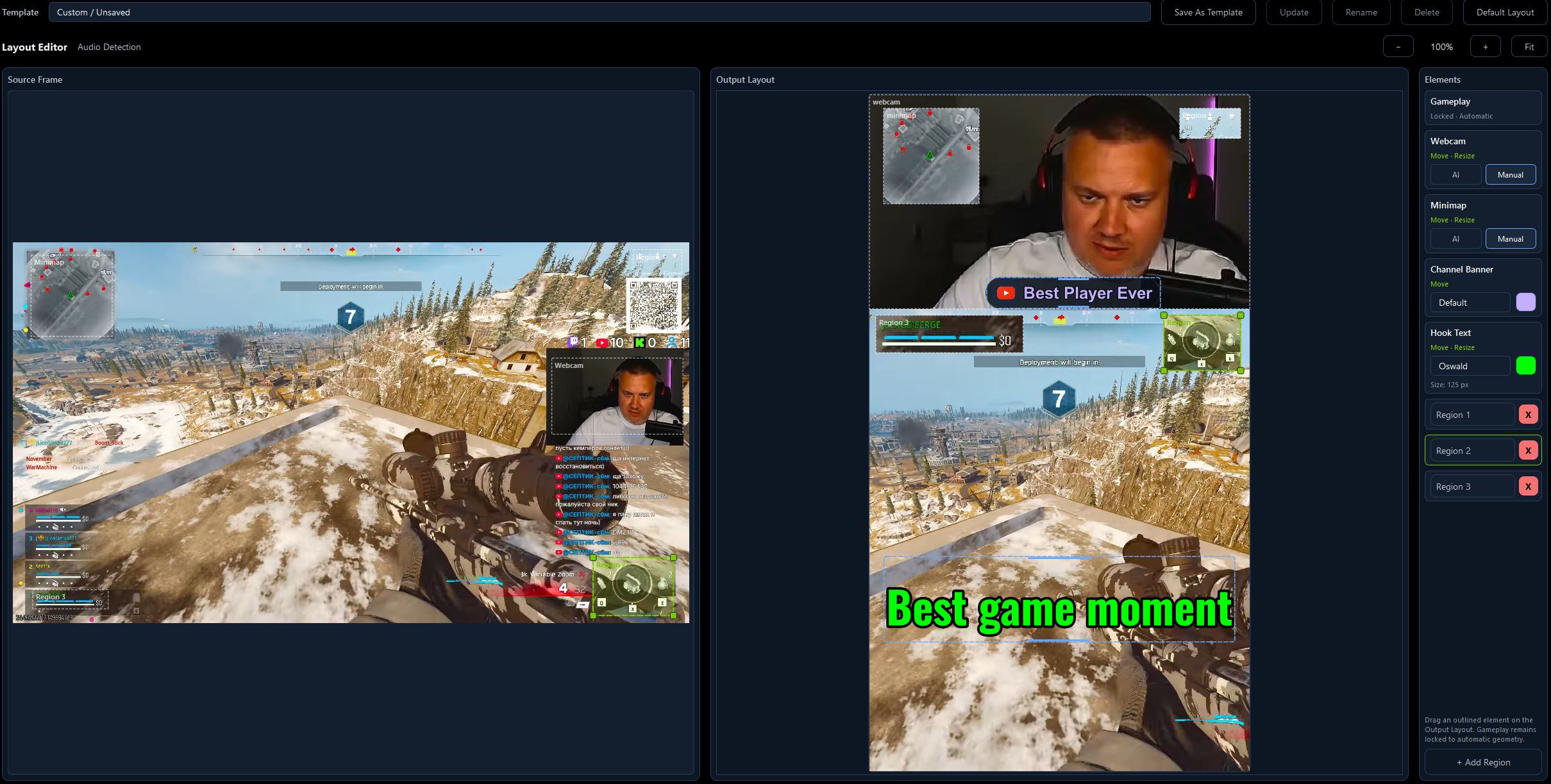
The editor shows the horizontal source and the finished output side by side. You can move and resize the elements on the output canvas while checking where each crop comes from in the recording.
Start With Gameplay, Webcam and Minimap
ClickClips can detect webcam and minimap regions automatically in supported workflows. When the detected region is correct, it becomes a fast starting point. When a stream uses an unusual overlay, you can select the source region manually instead.
That combination is deliberate. Automatic detection should remove repetitive setup, not remove control. You can keep the detected crop, adjust it or choose a different part of the frame.
The same idea powers the dedicated webcam and minimap layout workflow: the source remains one video file, but the important visual regions do not have to remain locked in their original positions.
Add Up to Four Extra Crop Regions
Not every stream fits the standard gameplay, webcam and minimap structure. A recording may also contain a scoreboard, team status, inventory, secondary camera, kill feed or another game-specific HUD element.
For vertical layouts, the editor supports up to four additional crop regions. Each region can be selected from the source and placed in the output composition. You can build a simple gameplay-and-webcam layout or a more detailed layout that keeps several pieces of the game readable.
Place Hooks, Branding and Supported Subtitles
A reusable layout also carries visual identity. The channel banner and hook can be moved, resized and styled so they do not cover the same part of the game. In Max workflows that support automatic subtitles, the subtitle area can also be positioned as part of the layout.
This makes the template more than a collection of crop coordinates. It becomes a repeatable presentation style for the channel.
Save the Layout Once and Reuse It
After the composition is ready, you can save it as a named template. ClickClips supports up to 20 user-created layout templates in total, so one universal design does not have to serve every kind of clip.
For example, you might save:
- Gameplay First: a large game area, compact webcam and readable minimap.
- Reaction Clip: a larger webcam when the streamer's response is the point of the moment.
- TikTok Gaming: a 9:16 layout with a prominent opening hook and channel banner.
- Clean Gameplay: more space for the game with fewer overlays.
- HUD Detail: additional regions for a scoreboard, inventory or team status.
The first setup still requires a design decision. The time saving comes later, when the next Twitch VOD can use the same composition without recreating every crop and position.
Use the Layout With Manual or Automatic Clipping
The method used to find a moment and the method used to present it are separate decisions in ClickClips. A moment may be selected manually, found from audio activity, located through speech or suggested by AI Detection. The approved clip can still use the same saved layout.
This is the difference between a layout tool and a complete gaming clip editor workflow. The layout does not live in an isolated design file. It stays connected to the source video, the selected moments and the final render.
Batch Processing uses one shared layout across the batch rather than a different named template for every row. Each video can keep its own analysis settings, while the batch-wide composition provides a consistent look across the finished clips. For an editor working through several long recordings, that consistency can remove a substantial amount of repeated setup. See the broader long-video clipping and batch workflow.
Vertical and Horizontal Layouts Do Different Jobs
The full multi-region composition is designed for vertical output, where a 16:9 stream must be reorganized for a 9:16 canvas. Horizontal output keeps the source framing instead of rebuilding gameplay, webcam and minimap as separate regions.
| Layout element | Vertical 9:16 | Horizontal 16:9 |
|---|---|---|
| Gameplay, webcam and minimap regions | Separate positioning and sizing | Kept in the source framing |
| Up to four extra crop regions | Supported | Not used |
| Channel banner and hook | Positioned in the layout | Positioned over the horizontal output |
| Subtitles | Available in supported Max workflows | |
ClickClips can export both vertical and horizontal clips, including up to 4K when the source and selected output settings support it. The important distinction is that custom source-region composition solves a specifically vertical problem.
How This Differs From Twitch Edit Layout
Twitch includes an Edit Layout tool for portrait versions of Twitch clips. It can suggest a crop, keep gameplay and camera in frame, and provide stacked or full portrait layouts.
ClickClips is aimed at a different point in the workflow: long local recordings and VOD files on a Windows PC. It can find candidate moments, preserve a minimap or other HUD regions, save multiple named layouts and apply one consistent composition across future videos or a batch. The source files and rendering remain local.
If you only need to reframe one existing Twitch clip, the built-in Twitch editor may be enough. If you are turning multi-hour recordings into many clips and want reusable layouts tied to that process, ClickClips is built for that job. The dedicated Twitch VOD clip editor guide covers the complete workflow.
Who the Custom Layout Editor Is For
The editor is most useful for creators who repeatedly publish:
- gaming clips from long local recordings or Twitch VODs;
- YouTube Shorts, TikTok videos and Reels made from horizontal gameplay;
- clips where webcam reactions and gameplay matter at the same time;
- videos where a minimap or another HUD region must remain visible;
- multiple clips that should share the same branding and composition.
Free users can create clips with the standard layouts. The Custom Layout Editor and rendering custom layouts are available with ClickClips Pro and Max. Max also adds workflows such as AI Detection, Highlight Intro, Batch Processing and automatic subtitles. The current feature breakdown is available on the ClickClips pricing page.
Frequently Asked Questions
Can I create my own 9:16 gaming clip layout?
Yes. A vertical layout can combine gameplay, webcam, minimap, channel branding, hook text and up to four additional crop regions selected from the source recording.
Can ClickClips detect the webcam and minimap automatically?
Yes. Supported workflows can detect webcam and minimap regions automatically. You can also select or adjust the regions manually when the recording uses an unusual stream layout.
Can I save a gaming clip layout and use it again?
Yes. Custom layouts can be saved as named templates and selected for future recordings. ClickClips supports up to 20 user-created templates in total.
Can I use a saved layout with long Twitch VODs and Batch Processing?
Yes. Saved layouts can be used when working with long local Twitch recordings. Batch Processing applies one shared layout across the videos in that batch while each row keeps its own analysis settings.
Which ClickClips plans include the Custom Layout Editor?
Custom layout editing and rendering are available with Pro and Max. Some elements inside the editor, including automatic subtitles and Max-only analysis workflows, still depend on the active plan.
Can I use the same custom layout for vertical and horizontal clips?
Custom crop regions are designed for vertical 9:16 clips. Horizontal exports keep the source aspect ratio, while supported overlays such as branding, hook text and subtitles can still be added.
Build It Once, Then Keep Clipping
The purpose of the Custom Layout Editor is not to turn ClickClips into a full timeline editor. It is to remove one more repetitive step between a long recording and a finished clip.
Arrange the gameplay, webcam, minimap and branding once. Save the result as a template. The next time you find a moment worth publishing, the layout is already waiting.